The full pipeline
Select text → ⌃⌘C → R → B → T → E → done
When one transformation isn't enough:
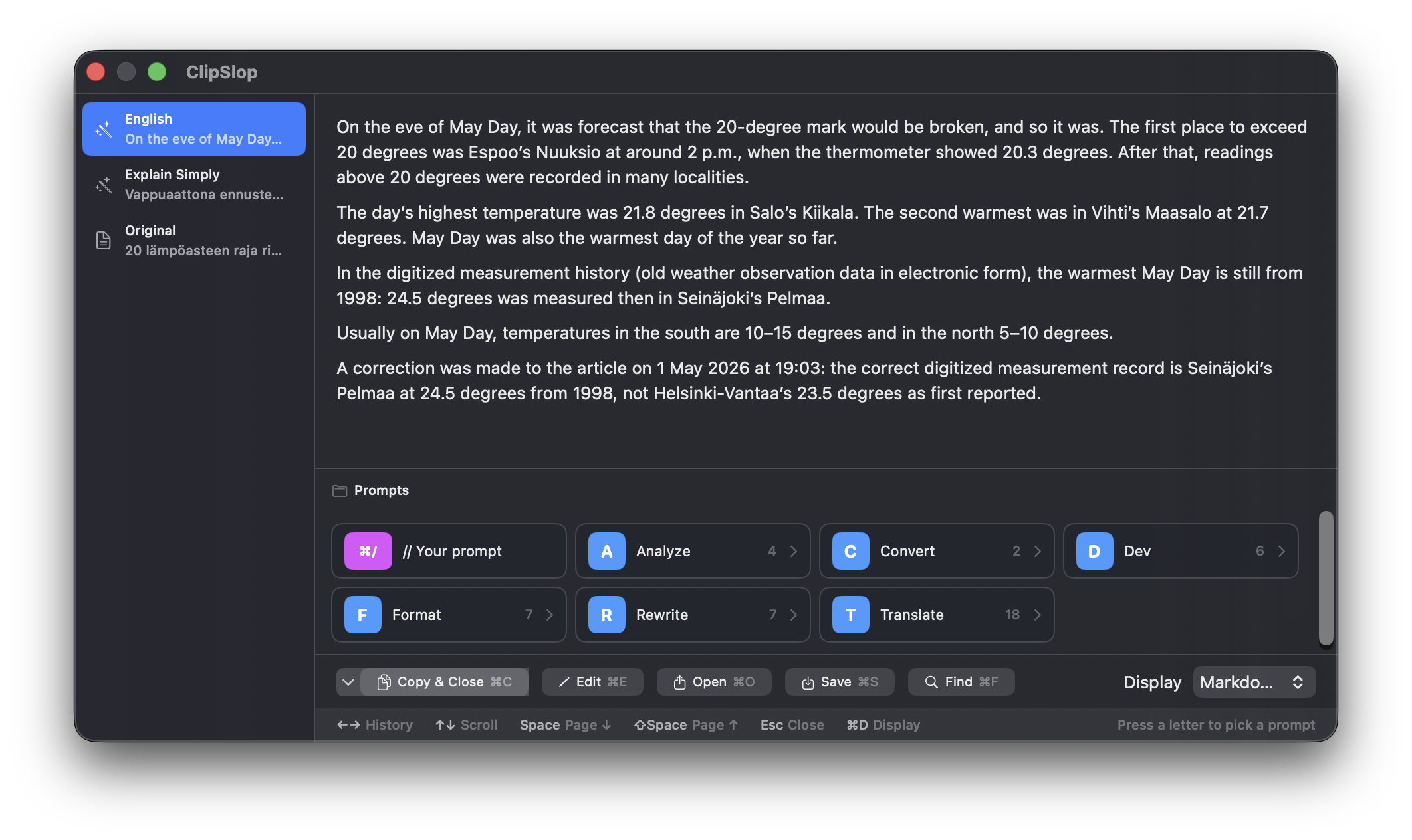
- Trigger. Select text anywhere, press ⌃⌘C. The selection appears in a floating panel.
- Navigate. A nested prompt tree with single-key mnemonics:
T→ Translate,R→ Rewrite,F→ Format. Drill into folders, pick a prompt — one keypress each. - Chain. Each result becomes the input for the next prompt. Translate → Elaborate → Format as Email. Every step is saved.
- History. Use ↑/↓ to walk the full transformation chain (↑ jumps to a newer step, ↓ to an older one). Branch from any step. See History & branching.
- Use. Copy (⌘C), edit (⌘E), save (⌘S), or keep chaining.
The floating panel — what you'll see when you trigger the pipeline:
The prompt tree
Prompts live in folders. Each folder has a mnemonic key:
[T] Translate
    [E] English
    [F] Finnish
    [R] Russian
    ...
[R] Rewrite
    [B] Business
    [P] Professional
    [W] Warm
    ...
[F] Format
    [G] Fix Grammar
    [E] Email
    [M] Markdownify
    ...
So T → E translates to English. R → B rewrites in a business tone. F → M reformats as Markdown.
Add your own prompts and folders in Settings → Prompts — every prompt has a name, mnemonic, system prompt, optional global shortcut, and per-prompt provider override. See Prompt library for details.
Process from clipboard
If you've already copied text and don't want to re-select, press ⌃⌘V instead — ClipSlop opens with whatever's on the clipboard as input.
Blank editor
Want to write something from scratch and run prompts on it? Press ⌃⌘N to open an empty editor. Type, then trigger any prompt.